City Dialog
Getting to know the City Dialog is a major aspect of playing Freeciv21. As a player you will spend a great amount of time using this dialog box. The City Dialog is accessed by clicking on a city in the Map View or by double-clicking a city from the table in the Cities View. Fig. 70 shows a sample of the City Dialog. The dialog box is broken up into 5 major segments:
City information (top left)
Production and city supported items (left)
City citizen tile output (center)
General, Citizens, and Governor tabs (right)
Present units (bottom center).

Fig. 70 City Dialog
Let us start at the top left as highlighted in Fig. 71. In this segment of the dialog box is some general information about the city. The name of the city is in the header near the top. If you click on the city name, a dialog box will appear and allows you to rename the city to something else. You will see navigation buttons for previous and next city as well as a close button on the very top. Below the city name, the dialog will show how large the city is. Each rectangle icon is equivalent to 1 citizen (10,000 population). At the bottom of this segment is information about the city’s status. From left to right you will see net food, net production, net gold, net science, net trade, and turns to grow to the next city size. If you hover your mouse over any of these icons, the client will show you detailed information on the calculation for the net value displayed.

Fig. 71 City Dialog - Top Left
Note
The city array will change over time as you gain and lose cities. It generally follows a left to right, top to bottom pattern on the map.
Moving to the segment highlighted in Fig. 72. You will see all the items that the city supports, starting with Wonders, Improvements and then Units. Next to this you will see the production queue of items the city will work on. You can see how much gold it will cost to buy the current item being produced. If you click on the Buy button, a confirmation dialog will appear. In Fig. 72’s example a Temple is being constructed for a total cost of 25 shields (production). The city has produced net 24 of 25 needed shields and at its current rate of net +6 production will take 1 turns to complete. The player for this example has also added multiple items to the work list. When the Temple is finished, the city will start production on Aqueduct, River. At this point, the city needs 1 shield to finish the Temple. At +6 shields per turn the city will produce 5 more shields that is needed. The surplus shields will transfer to the Aqueduct, River when the Temple is complete. If the production rate did not have extra shields left over, then no shields would go towards the Aqueduct, River, when the Temple is complete.

Fig. 72 City Dialog - Production
At the bottom of the segment are four buttons: Add, Move Up, Move Down, and Delete. Clicking on Add, will open a pop up menu showing all of the items that the city can produce. Clicking on the item will add it to the bottom of the work list above. If you wish to move this new item or another item in the work list up, click (select) it from the work list and click the Move Up button. Same action for the Move Down button. To remove the item from the work list, select an item in the work list and click on Delete. You can also double-click on an item in the work list and it will be removed from the work list.
City Production Work Lists
One more feature of the Production segment is the work list editor. You can save work lists for later use. To get started, populate the work list with things you want to build. This can be a collection of city improvements, units, and wonders. Once you have the list configured the way you like it, right-click on the work list canvas and a pop up menu will show. Start by selecting Save Worklist. A dialog box will pop up allowing you to give the list a name. If you clear out the work list on the Production segment and then right-click on the work list canvas, you can pick Insert Worklist or Change Worklist from the sub-menu. Insert Worklist will add the items in the saved work list to the main work list. Change Worklist will clear what is in the main work list and replace it with the saved work list.
Moving to the center, we can see the city citizen tile output segment and the city’s full vision radius
highlighted over the main map as shown in Fig. 73. This example shows a size 6 city,
which means 6 tiles can be managed by the citizens. Each citizen can be assigned to work one tile, extracting
food, production and trade from it (the numbers shown are in the same order). In addition, the city tile is
always worked for free. In this example, there are irrigated grassland (3/0/1), irrigated grassland with
river (3/0/2), and mined hills with roads and wine (1/3/4) tile being managed by a citizen. You also
see the city center is on a forest river tile and gives 1/3/1 output. You can click on the city center and
the game will automatically pick the best tiles for net food to aid city growth. You can also click on a tile
to remove the citizen from the tile and then click another tile to have the citizen manage another tile. This
is commonly referred to as city micromanagement. If you remove a citizen from managing a tile, take a look at
the top left segment. The citizens icon bar will show one entertainer specialist. If you want to change the
entertainer to a scientist or a taxman, you can click on it in the icon bar to change.

Fig. 73 City Dialog - City Center
Moving right, we can see the General tab on panel as highlighted in Fig. 74. This tab shows information similar to what is shown on the top left segment. Hovering your mouse over many of the items at the top of the General tab will show detailed calculation on how the net value is calculated. Hovering your mouse over the citizens value will give you information on the happiness of the city’s citizens.

Fig. 74 City Dialog - General
On the right side is the Citizens tab, as highlighted in Fig. 75. The Citizens tab shows you information about the happiness and nationality of the citizens. Happiness is broken down into segments: Cities (Empire Size), Luxury Goods, Buildings, Nationality, Units, and Wonders.

Fig. 75 City Dialog - Citizens
Overall happiness of the citizens in your cities depends heavily on all of these factors. Certain forms of government have varying degrees of empire size penalties and as your empire grows you will have to deal with the negative consequences of managing a large empire and the unhappiness it creates. The amount of luxury goods you are producing as part of your National Budget View will aid this problem. Certain city improvements can improve happiness, as well as units in the city (martial law), along with wonders. If units are in the field in battle against your enemies, they can cause unhappiness. Hovering your mouse over the appropriate row will give you more information about it.
Fig. 76 shows what it looks like when you have mixed nationality in your cities. Mixed nationality can cause unhappiness and occurs when you conquer an opponent’s city.

Fig. 76 City Dialog - Citizens Nationality
The Governor tab, as highlighted in Fig. 77, gives information on the Citizen Governor for this city. For more information on how to use the Citizen Governor refer to Citizen Governor (aka Citizen Management Agent, or CMA).
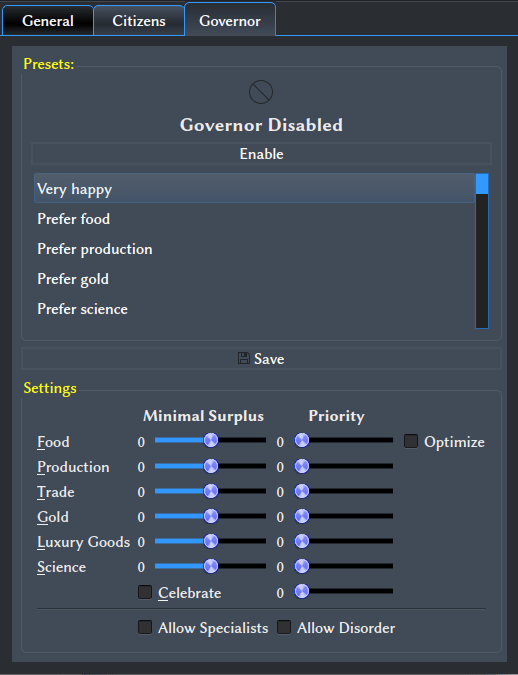
Fig. 77 City Dialog - Governor
Moving to the bottom center, you will see a list of the units that are present in the city, as highlighted in
Fig. 78. There can be units present in a city that the city is not supporting, or
from your allies. If you right-click on a unit, a pop up box with action commands you can give to the unit
will be displayed. If you double-click on a unit, the City Dialog will close and the unit will be
selected. See Unit Controls for more information on what you can do with units. If you wish to select
more than one unit to give a command to, you can do that by holding the ctrl key on your keyboard and then
left-clicking on the units you want to select. When finished, right-click on one of the selected units and
pick the option you want. This is a great way to activate a collection of units all at once. Depending on the
number of units in the city, this widget will expand left and right to the width of the screen.

Fig. 78 City Dialog - Present Units