Chat Widget
The chat widget, also known as the Server Chat/Command Line, is a floating bar typically found either in the upper left or lower left of the map view when a game is started. It looks something like this:

Fig. 64 Minimized Chat Widget
You can move the widget by clicking the plus ( + ) symbol on the upper left corner. On the right edge you will see either two up arrows or two down arrows to maximize or minimize the widget. By default the widget is minimized. You can resize the widget’s width and height when it is maximized. When minimized, the widget’s width will stay the same size as when maximized.
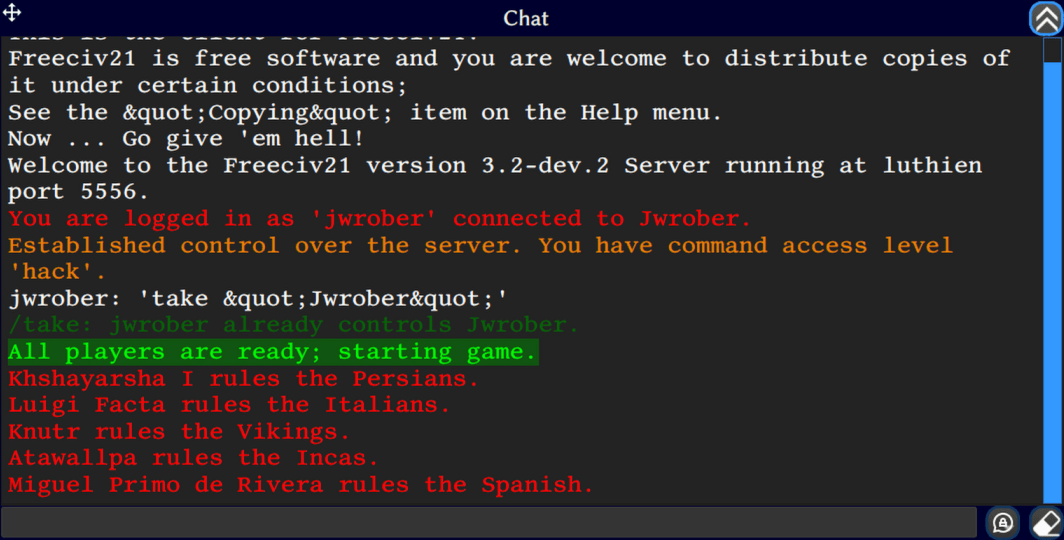
Fig. 65 Maximized Chat Widget
The chat widget is a very powerful tool that you can use to conduct a number of things while playing a game.
Chat with other players. You can chat with an individual player and also with a group of players (allies).
Issue commands to the server. Local single-player games have
hackcommand level access and can issue any command to the server. Longturn multi-player games haveinfocommand level access and will only have a limited set of commands. The/list,/take, and/observecommands are common for Longturn multi-player games.Interact with tiles on the map.
Set specific messages to output there. This is great for team games where you might want to copy and paste the results of combat or other events to a group chat such as a Discord server. The messages widget in the Top Function Bar does not natively support copy and paste at this time.
The following documentation discusses the out of box default settings. You can change some of them from the Game Shortcut Options.
Chat with Players
Human to human communication is a very important aspect of Longturn multi-player games. Leveraging the chat feature of the chat widget is an easy way to have some simple conversations with a player or a group of players.
Communication is between the username of a player. You can show that column in the
nations view.
To initiate a chat with player username Johnathan, enter john or Johnathan followed by a
colon ( : ) and then finish your message.
Jonathan: I am only exploring, not an act of aggression nor spying!
In the john scenario, the server will find all players that start with john and if the name is
ambiguous the server will refuse to send the message. If you want to ensure you are holding a private chat
with Johnathan, then be sure to use the whole username.
If you start a chat with no username and only a colon ( : ), this will send a message to all players.
:Yo, heads up! Armageddon is upon you all! buyahahahaha [eol]
Lastly, if you start a chat with a period ( . ), this will send a message to your allies only.
.Hey allies, I am going to attack that weak enemy at [tile].
As it pertains to communicating with everyone or your allies, you can also control it by toggling the bubble/horn icon on the bottom right edge of the maximized chat widget. The icon is visible when playing Longturn multi-player games and not while playing single-player games against the AI. Depending on how you have it set you can ignore using either the colon (everyone) or the period (allies) text in the chat.
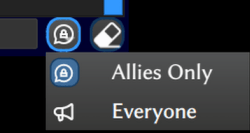
Fig. 66 Chat Widget Group Comms
If you want to get fancy with the formatting of the text, you can add a few html styled font changes with
the square brackets ( [ or ] ).
For bold font use
[bold]some text[/bold]. The shortcut code is[b].For italic font use
[italic]some text[/italic]. The shortcut is[i].For strike-through font use
[strike]some text[/strike]. The shortcut is[s].For underline font use
[underline]some text[/underline]. The shortcut is[u].To colorize the font, you can add color tags. You have the option of colorizing the foreground (fg) and/or the background (bg). Use
[color fg="blue" bg="yellow"]some text[/color]to add blue to the foreground and yellow to the background. You do not have to colorize both sides, you can only add one side. You can use most primary color names. The shortcut is[c].
Server Commands
There are a lot of server commands available and we will not go over all of them here. However, there are a few to highlight that are useful during Longturn multi-player games:
/list connections/list delegations/list players/take <player-name>/observe <player-name>
Tip
You can also access the Server Chat/Command Line on the new game screen by entering
commands into the text box in the lower left corner. The /take <player-name> command is often
useful here when starting a new Longturn multi-player game.

Fig. 67 Start New Game
Interact with the Game Map
One of the greatest, and potentially least used, feature of the chat widget is interacting with
the game map. You can link to tiles, units, and cities. Similar to the chat section above, we will use a tag of
[link] (shortcut [l]). The good news is you do not have to type all the information. Most of the time,
you can use a keyboard + mouse shortcut. For all of these options, you
start by clicking your mouse in the chat widget text box first and then…
To link to a city, press
ctrl-alt + right clickover a city and a link should show in the widget. For example:[l tgt="city" id=121 name="Dzithinahndé" /].To link to a unit, press
shift-ctrl-alt + right clickover a unit and a link should show in the widget. For example:[l tgt="unit" id=106 name="Workers" /].To link to any tile that is visible to your player, press press
ctrl-alt + right clickover a tile and a link should show in the widget. For example:[l tgt="tile" x=2 y=30 /].
Tip
A great way to help you map out where you may want to place cities on the map is to send a message to yourself with link(s) to some tiles. A frame box will show over the tile same as when you send a link to a player, everyone, or your allies. When you send a message to yourself, the tile markers are only visible to you. This is similar to if you send private message to another player, the message and map links are private.
Output Messages
As mentioned above, you can set specific messages to output to the chat widget. Some good ones to pick are:
Unit: Attack Failed
Unit: Attack Succeeded
Unit: Defender Destroyed
Unit: Defender Survived